Test in a development environment
If you want to test Rek.ai's functions and recommendations in a development environment before going live, you can do so in two ways: by adding the development environment to Allowed domains in the Dashboard or by sending your project ID and secret key with the request.
Please note: In some cases your development environment has its own project; in other cases it shares the same project as production so be careful about which secret key, project ID and script you use in the development environment.
Activate recommendations in a development environment
Development environment with Allowed domains
- In the Dashboard, go to Allowed domains and add your test environments URL.
- Add your projects static script to the test environment. You can find the script in the Dashboard Overview or General settings.
- Add the cookie below to all pages, to prevent page views from being saved in the test environment:
<script>
  document.cookie = 'rekblock=1; max-age=60; SameSite=None; Secure';
</script>- Start testing your recommendations:
<div class="rek-prediction" data-subtree="/news/" data-nrofhits="5"></div>Development environment with Project ID and Secret key
If the development environment is, for example, localhost, this is the only way to test, since localhost can't be added to Allowed domains in the Dashboard.
- Add your project's static script to the test environment. You can find the script in the Dashboard Overview (opens in a new tab) or General settings (opens in a new tab).
- Add the cookie below to all pages, to prevent page views from being saved in the test environment:
<script>
  document.cookie = 'rekblock=1; max-age=60; SameSite=None; Secure';
</script>- To get recommendations, you need the Project ID and Secret key, find them by logging into the Dashboard (opens in a new tab):
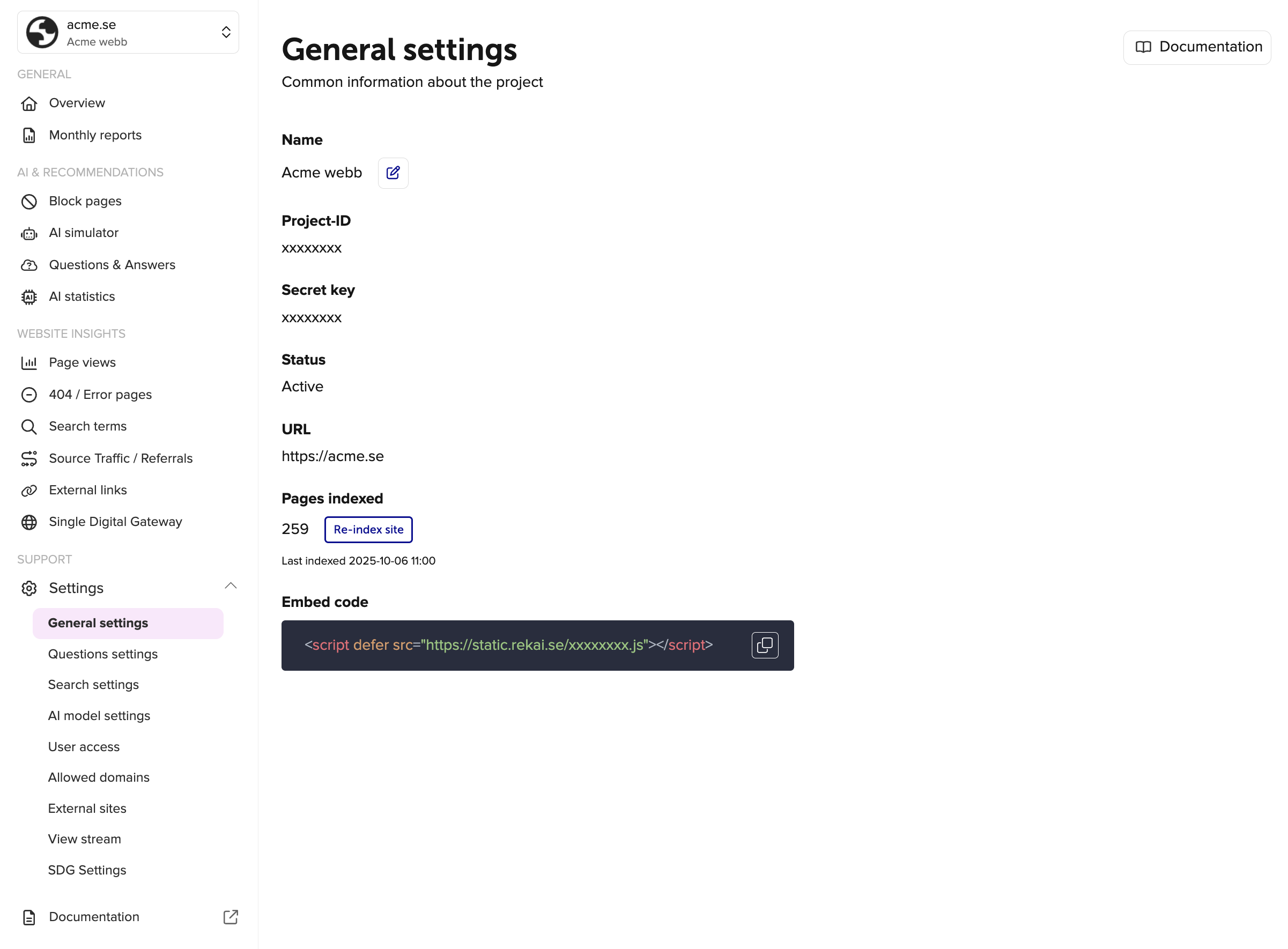
- Add these as data parameters (
srekis the secret key) and start testing your recommendations:
<div class="rek-prediction" data-projectid="ENTER PROJECT ID" data-srek="ENTER SECRET" data-subtree="/news/" data-nrofhits="5"></div>Development environment with Sitevision
Testing recommendations with Sitevision works a bit differently, since you can test either with or without installing the module itself.
With the module:
- Download the Sitevision module and select "I already have an account."
- Add the module to the base template and choose "gather" mode.
- Add the cookie below to the base template, to prevent page views from being saved in the test environment:
<script>
  document.cookie = 'rekblock=1; max-age=60; SameSite=None; Secure';
</script>- In the Dashboard, go to Allowed domains (opens in a new tab) and add your test environment's URL.
- Start testing recommendations directly through the module.
Without the module:
- Add your project's static script to the test environment manually.
- Add the cookie below to all pages, to prevent page views from being saved in the test environment:
<script>
  document.cookie = 'rekblock=1; max-age=60; SameSite=None; Secure';
</script>- In the Dashboard, go to Allowed domains (opens in a new tab) and add your test environment's URL.
- Write the recommendations directly in code, for example:
<div class="rek-prediction" data-subtree="/news/" data-nrofhits="5"></div>Since the test environment's URL is added under Allowed domains, you don't need to fill in the Project ID and Secret key with either method above.
If Allowed domains isn't an option for your test environment (for example, if it's on localhost), you can instead get your Project ID and Secret key and add them in the Advanced field of the module:
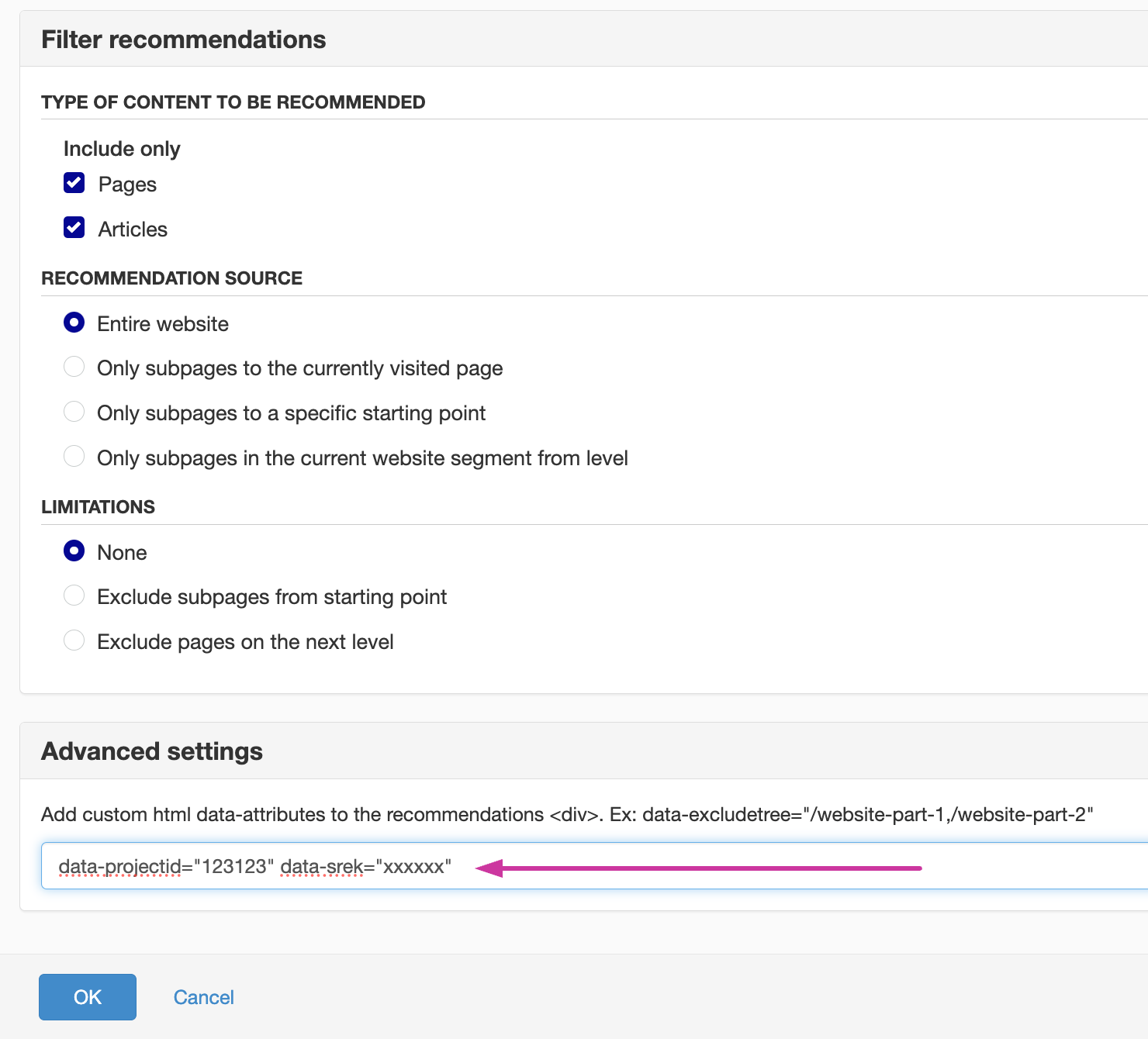
See also: Recommendations module manual (opens in a new tab).
Activate search in a development environment
With Sitevision autocomplete:
<script src="https://static.rekai.se/files/sv-autocomplete.min.js"></script>
<script>
  svDocReady(function() {
    $svjq(".sv-searchform-portlet input[name='query']").rekAutoComplete({ // ID for the search input field
      sendToTarget: true,
      params: {
        projectid: 111111,
        srek: 'YOUR SECRET'
      }
    });
  });
</script>
With generic Rek.ai autocomplete:
<script src="https://static.rekai.se/addon/v3/rekai_autocomplete.min.js"></script>
<script>
    __rekai.ready(function() {
      var rekAutocomplete = rekai_autocomplete('#search-input', { // ID for the search input field
        params: {
          projectid: 111111,
          srek: 'YOUR SECRET'
        }
      });
    });
</script>
Test with mock data
By adding a parameter, each prediction can return mock data, which is helpful when developing: advanced_mockdata (opens in a new tab).